Building a Manatee River Lagoon in Planet Zoo 2: Tips and Techniques
Learn how to design a lush manatee river lagoon in Planet Zoo 2, including using the new lagoon system, landscaping brushes, and managing animal navigation.
Published: Planet Zoo 2 Wiki Editorial Team
Table of Contents
Understanding the Lagoon System in Planet Zoo 2
The introduction of a dedicated lagoon system in Planet Zoo 2 changes how players approach aquatic and semi-aquatic habitats. Based on community insights from early access sessions, this system is designed to handle water, terrain, and animal navigation more cohesively than in previous titles.
A key feature of the lagoon system is its flexibility regarding enclosures. You can now place roofs over your lagoons, which opens up creative possibilities for mixed-species habitats—such as combining an aviary with a water-based lagoon. By using tunnel systems that emerge on islands within the lagoon, you can create complex, multi-layered habitats where animals can transition between different environments.
Tip
When creating complex habitats that combine different biomes, remember that you may need to use custom barrier configurations to ensure animal containment, especially when connecting tunnels to open-air or roofed areas.
Designing Your Manatee River Lagoon
Building a "Manatee River Lagoon" is a great way to test the game's mechanics. Because manatees spend significant time near the surface, they are excellent subjects for observing water navigation and interaction with terrain.
When planning your layout, consider the following approach:
Define the Water Body: Use the lagoon tool to carve out your river or pool area. Unlike standard water tools, the lagoon system is optimized for aquatic species.
Integrate Terrain and Islands: Create landmasses within the lagoon. These are essential for placing enrichment items, feeding stations, or even connecting to tunnel entrances.
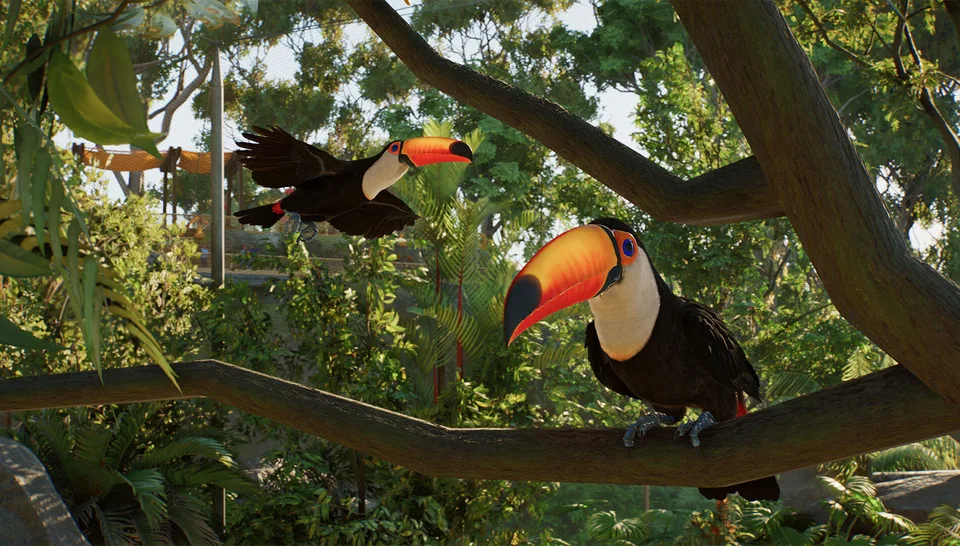
Add Verticality: Use rocks and foliage to break up the water's edge. Community reports suggest that placing branches over the water allows for interesting interactions, such as birds (like magpies) landing on branches above the manatees.
Creating a Multi-Species Lagoon
Establish the Lagoon: Use the dedicated lagoon tool to set the water boundaries.
Place Tunnel Entrances: Create a tunnel that emerges on a central island within the lagoon.
Design the Habitat: Ensure the path between the tunnel entrance and exit is secured with custom barriers to prevent animal escapes.
Add Vegetation: Use the brush tool to populate the surrounding area with foliage, ensuring the density matches your desired aesthetic.
Landscaping with Brushes and Foliage
One of the most significant quality-of-life improvements in Planet Zoo 2 is the landscaping brush. This tool allows for rapid placement of trees, rocks, and plants, which is essential for creating "lush" environments without spending hours placing individual items.
However, there are specific limitations regarding foliage you should be aware of:
Scaling Restrictions: While you can scale many objects, foliage has a specific limit. This is because plants in Planet Zoo 2 are animated and undergo seasonal changes. Allowing them to be scaled infinitely would break these animations.
Pre-scaled Variants: The game includes an exhibit tab with foliage pieces that are already pre-scaled. These are often optimized for smaller spaces and may have different behaviors regarding seasonal changes.
[ ] Check if the foliage piece is part of the "exhibit" tab if you need a specific size.
[ ] Use the brush tool for large areas to maintain a consistent density.
[ ] Manually place individual items when you need precise control over the aesthetic.
Advanced Construction Features
For builders who enjoy high-detail work, Planet Zoo 2 includes several tools that allow for more precise control over scenery and structures.
Mirroring and Rotation
The game includes a mirroring feature, which is particularly useful for symmetrical builds. Note that, based on current reports, this function is generally limited to individual pieces rather than multi-selection groups. Additionally, you gain control over random rotation axes. Unlike in some other simulation games where random rotation applies to all axes, you can select the specific axis (Y or Z) you want to randomize. This is helpful for items like trees (which should stay upright) versus rocks (which look better when randomized on all axes).
The "Missing" Feature: Random Scale
While the brush tool handles scaling well, players coming from other simulation titles—like Planet Coaster 2—may notice the absence of a "random scale" feature for individual object placement. In Planet Coaster 2, users can define a range (e.g., 95% to 105%) for individual items to create natural variation. In the current Planet Zoo 2 build, this specific feature for individual placement is not available, meaning you must rely on the brush tool's internal variety or manual adjustment.
FAQ: Frequently Asked Questions
Can I put a roof over my lagoon?
Yes, the lagoon system supports the addition of roofs, allowing you to create indoor or covered lagoon habitats.
Why can't I scale foliage to any size I want?
Foliage scaling is limited to ensure that the plants' seasonal animations and growth patterns function correctly within the game engine.
Can I mirror multiple objects at once?
Currently, the mirroring tool is primarily designed for individual pieces. You cannot simultaneously mirror a large, multi-item structure in the same way you might in other design software.
Do the brushes allow for custom settings?
Yes, you can control settings like the distance between pieces and whether items align to the ground, which is particularly useful for placing ground foliage or rocks.
Disclaimer: This guide is based on early access impressions and demonstrations. Features, mechanics, and performance are subject to change by the time of the final release.